Carbon Emission Profiles - Ribbon Toolbar
Genesis edition only.
The contextual ribbon toolbar for the Carbon Emission Profiles window gives you access to specific functions that allow you to manage the Carbon Emission Profiles that are currently being used within your project.
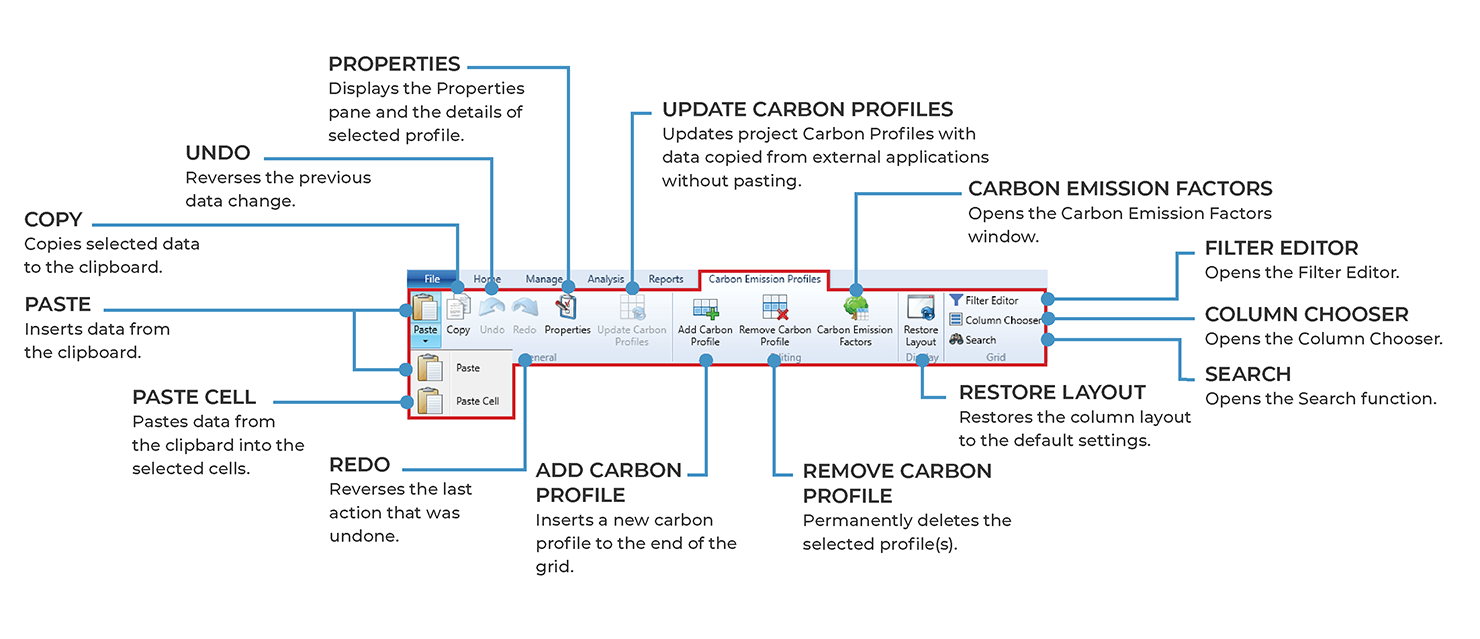
Carbon Emission Profiles - ribbon toolbar
GENERAL GROUP
|
NAME |
DESCRIPTION |
|---|---|
|
Paste |
Clicking the Paste button will insert the information from the clipboard into the Carbon Emission Profiles window. If the data was copied from within Expert Estimation it will be pasted as a new Profile. When data is copied from an external application, the Paste Special window will be displayed, allowing you to map into which columns the copied information is to be pasted. |
|
Paste Cell |
The Paste Cell button will paste information from the clipboard into the selected cells in the Carbon Emission Profiles window. Note: The Paste Cell button can be accessed by clicking the arrow underneath the Paste button. |
|
Copy |
Clicking the Copy button will copy the selected Profile information to the clipboard. This allows the data to be pasted within Expert Estimation or into an external application. |
|
Undo |
Clicking the Undo button reverses the last change made to the data. |
|
Redo |
The Redo button becomes available when an undo action is performed and is used to reverse the undo action. |
|
Properties |
The Properties button will open the Properties pane to the right-hand side of the window. This will display the details for the currently selected Profile(s) and gives you the ability to edit Carbon Profile data in bulk. |
|
Update Carbon Profiles |
Clicking the Update Carbon Profiles button updates the Carbon Profile’s data with data copied from external applications without pasting. |
EDITING GROUP
|
NAME |
DESCRIPTION |
|---|---|
|
Add Carbon Profile |
Using the Add Carbon Profile button creates a new Carbon Profile with the default name ‘New Profile’. |
|
Remove Carbon Profile |
Clicking the Remove Carbon Profile button permanently deletes the selected Profile(s). Note: If the Carbon Profile is currently assigned to a resource within the project, a warning dialogue will be presented prior to removing the profile. |
|
Carbon Emission Factors |
Opens the Carbon Emission Factors window, which displays the defined Factors created within this project. |
DISPLAY GROUP
|
NAME |
DESCRIPTION |
|---|---|
|
Restore Layout |
If columns have been removed, adjusted or relocated, clicking the Restore Layout button will restore columns to their default layout. |
GRID GROUP
|
NAME |
DESCRIPTION |
|---|---|
|
Filter Editor |
Opens the Filter Editor to allow users to modify the contents of the grid so that only items that match the specific criteria set will be displayed. |
|
Column Chooser |
Clicking the Column Chooser button will open a dialogue box that will allow users to add or remove columns from the grid. |
|
Search |
Clicking the Search function will display a field in the top right-hand corner of the grid, that will allow users to search the current window for the text entered. |