Project Properties – Cash Flow
Genesis edition only.
When adding a new Cash Flow Scenario to a project, you must select a calendar to use. The Cash Flow section of the Project Properties window allows you to setup project calendars that specify the working days that occur throughout the duration of the project and is used in calculating the daily consumption of resources.
To change the information in this section, click the Edit ( ) button in the ribbon toolbar.
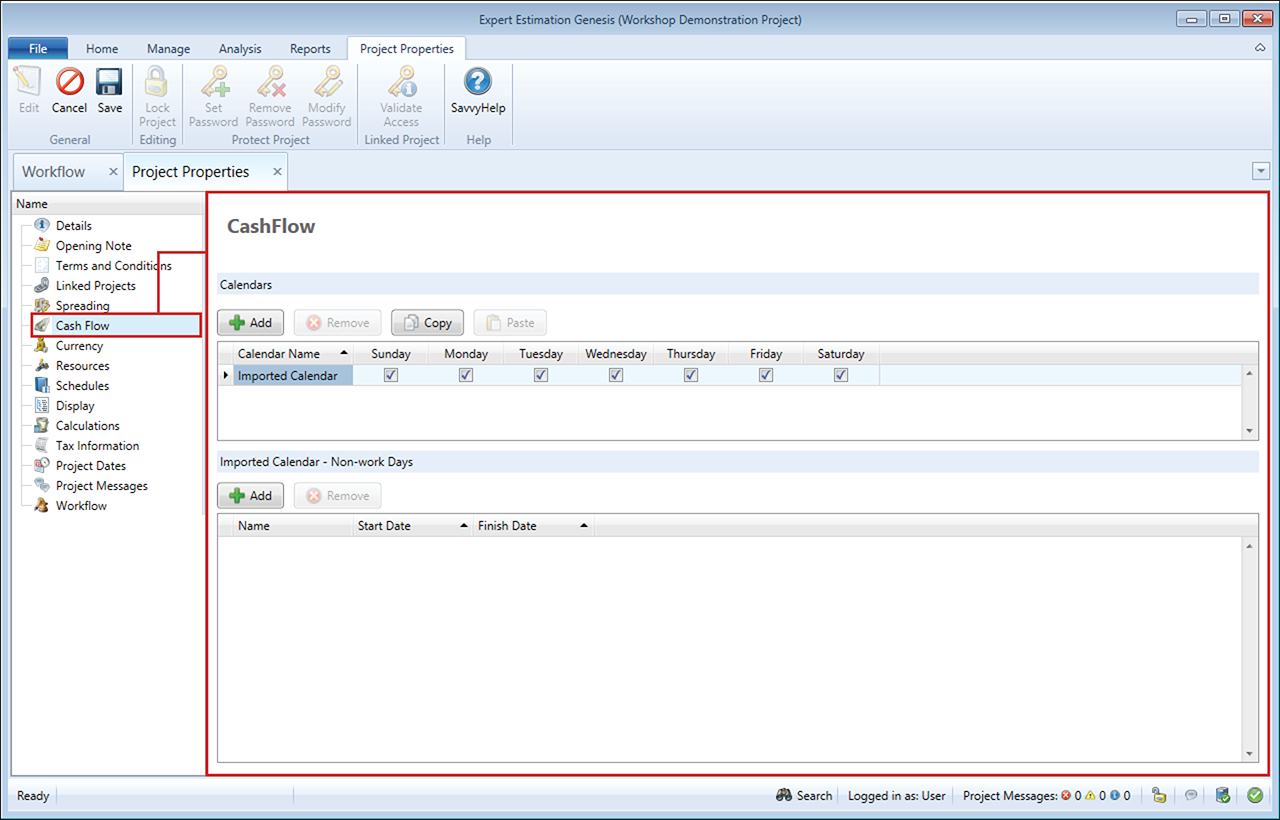
Project Properties window – Cash Flow
CALENDARS
The Calendars section of the window allows you to set up the calendars that are available for use in a Cash Flow Scenario. By default, there are two calendars set up for use within the project, a 5 Day and a 7 Day calendar.
New calendars can be added to the project by clicking the Add button in the Calendars section. After changing the Calendar Name, you can then specify the working days that occur each week by selecting the appropriate checkboxes.
Note: A calendar cannot be removed if it is currently used as a part of a Cash Flow Scenario.
NON-WORK DAYS
The Non-work Days section of the window allows you to specify a single or range of non-work days that occur during the project. If a day is marked as a non-work day, resources are not consumed on that day during the Cash Flow calculation.
Clicking the Add button in this section creates a new non-work day for the Calendar selected in the Calendars section. Any days that occur on and between the selected Start Date and Finish Date are marked as non-work days.