The Budget Performance – Detail Tab
The Budget Performance – Detail tab provides the ability to make the fundamental comparison between the Actual Costs of Work Performed (ACWP), Budgeted Costs of Work Scheduled (BCWS) and Budgeted Costs of Work Performed (BCWP) for a record date as well as forecast how a project looks at completion.
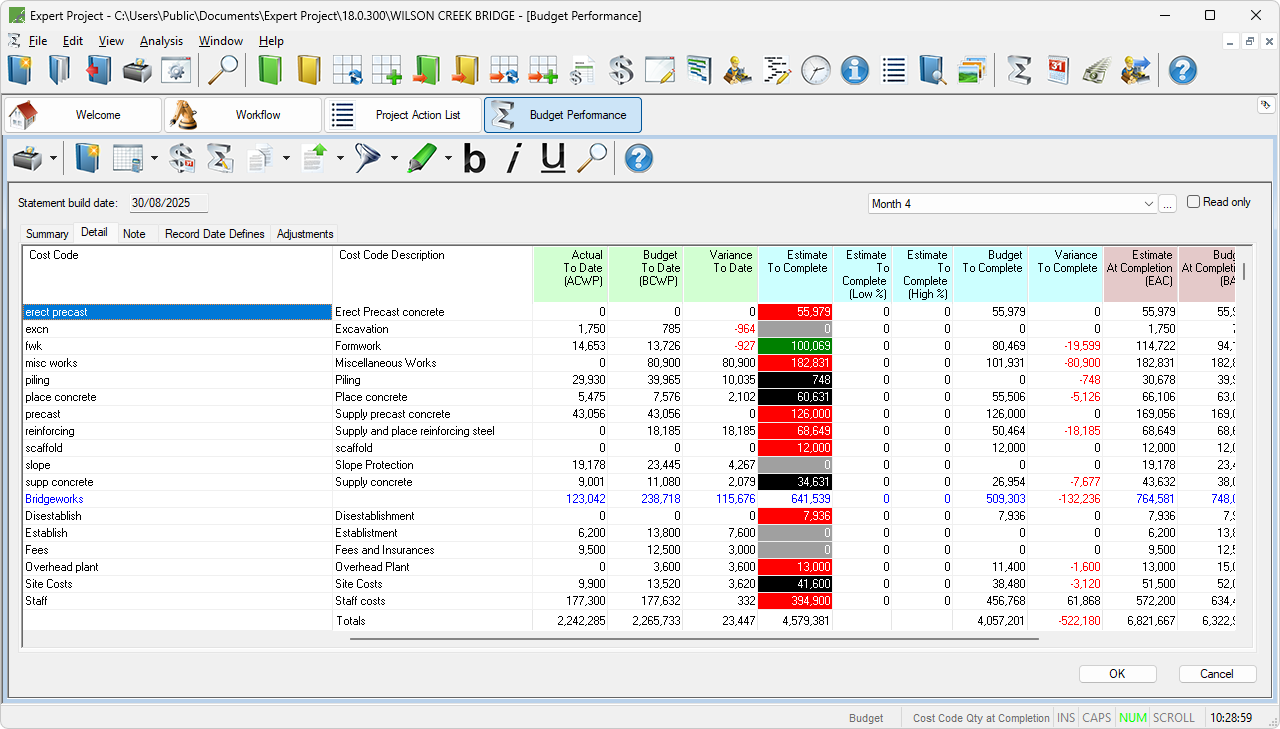
Budget Performance window – Detail tab
When opened, the Budget Performance – Detail tab automatically displays a list of all Cost Codes available in the project for the last Record Date created. A different Record Date can be viewed by selecting the required Record Date from the list at the top right of the window.
When opened for the first time, select a column layout for the main grid area. The Budget Performance – Detail tab can be set to either Item Focus or Cost Code Focus.
RECORD DATES
Record Dates are dates on which, a formal analysis is required to be conducted. The date selected for a Record Date is displayed in the top-left hand corner of the window as the Statement Build date.
New Record Dates can be created at any time by clicking the  button to the right of the Record Date list, selecting the Create new Record Date from the right-click context menu associated with the Record Date list, or select New Record Date from the Edit menu.
For each Record Date, the Actual Costs of Work Performed and Budgeted Costs of Work Performed are calculated from Actual Entered Costs and Progress on Items or Cost Codes respectively. The Estimate to Complete for each Cost Code can then be forecast using either a first principles Cost Estimate or a pre-defined formula.
Note: The Estimate to Complete column is colour coded to indicate the method of forecasting that has been used.
HIGHLIGHTS AND FONTS
For greater emphasis, each row in the Budget Performance – Detail tab can have a user-defined highlight applied. User-highlights are a combination of set foreground and background colours. Each highlight set can be saved and reused after they are created.
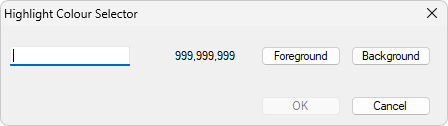
Budget Performance - Highlight Colour Selector
In addition to row highlighting, Font attributes, such as Bolding, Italics and Underlines, can be applied to various rows in the grid. These attributes can be set either from the Toolbar or the Font options in the Edit, or Context menus.
REVIEWED STATUS
Cost Codes can be reviewed within the Budget Performance window by selecting the Reviewed function under the Forecasting section of the right-click context menu or the Edit menu. When marked as reviewed, the row for the Cost Code is then highlighted with the colours set within the Options – Budget Performance window.