Spread Nominations – Ribbon Toolbar
Genesis edition only.
The contextual ribbon toolbar for the Spread Nominations window gives you access to the specific functions that help you manage the distribution of additional value to contributing Direct Cost Items.
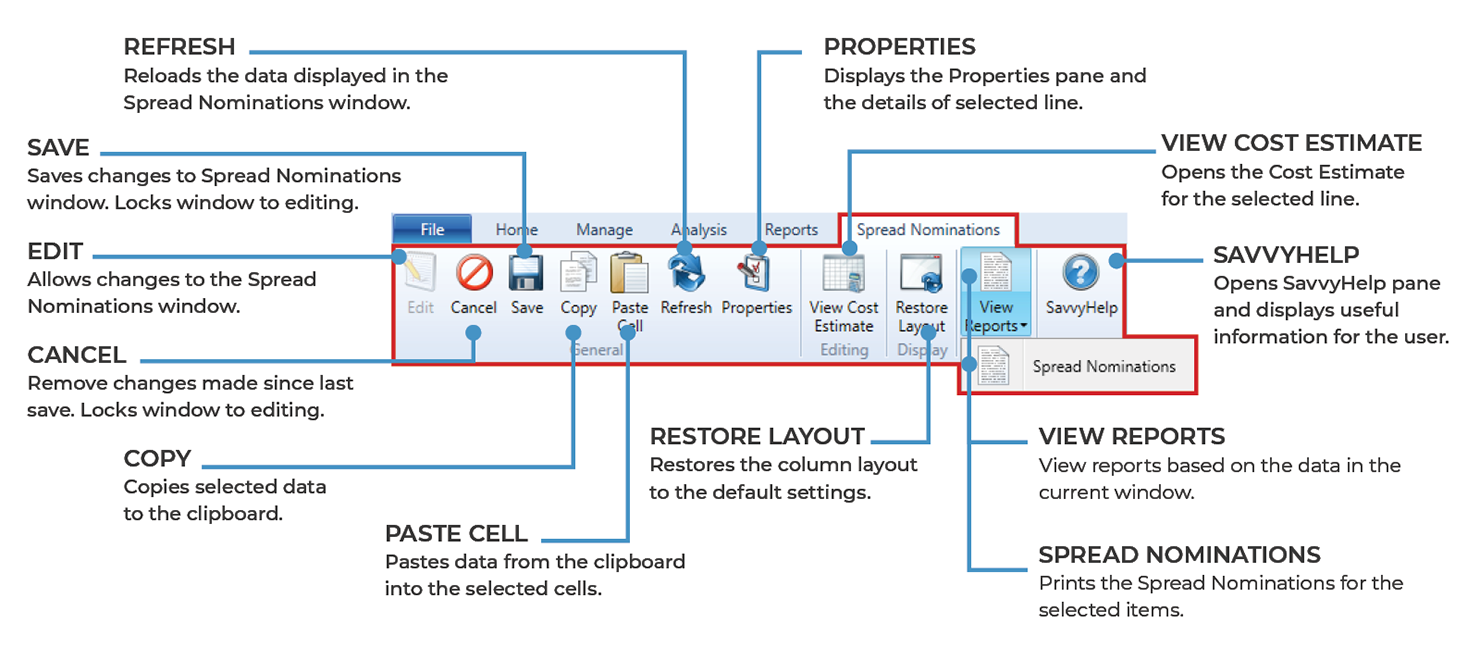
Spread Nominations – ribbon toolbar
GENERAL GROUP
|
NAME |
DESCRIPTION |
|---|---|
|
Edit |
Clicking the Edit function allows you to make changes or modify the Spread Nominations window. The Edit button must be selected before any modifications to the Spread Nominations can take place. After the Edit function has been enabled, the Spread Nominations window will become locked from editing by any other concurrent users. |
|
Cancel |
Any changes made to the information within the window can be reverted by clicking the Cancel button. Cancelling will prevent further editing from being available in the window until the Edit button is clicked again. It also unlocks the Spread Nominations window to allow other users to be able to Edit. |
|
Save |
When the Save button is clicked, changes made to the Spread Nominations window since opening will be saved to the project. |
|
Copy |
Clicking the Copy button will copy the selected Spread Nominations information to the clipboard. This allows the data to be pasted within Expert Estimation or into an external application. |
|
Paste Cell |
Pressing the Paste Cell button will paste information from the clipboard into selected cells in the Spread Nominations window. |
|
Refresh |
Clicking the Refresh button reloads the data in the window. |
|
Properties |
Opens the Properties pane on the right-hand side of the window. This will display the nomination options of the currently selected item(s) and gives you the ability to edit multiple nomination options at once. |
EDITING GROUP
|
NAME |
DESCRIPTION |
|---|---|
|
View Cost Estimate |
Clicking the View Cost Estimate button opens the Cost Estimate for the selected line, allowing you to view or build up its cost. This button is only enabled if an item with a quantity is selected. |
|
Go To Line |
Clicking the Go To Line button will take you to the selected scheduled line. |
DISPLAY GROUP
|
NAME |
DESCRIPTION |
|---|---|
|
Restore Layout |
If columns have been removed, adjusted or relocated, clicking the Restore Layout button will restore columns to their default layout. |
GRID GROUP
|
NAME |
DESCRIPTION |
|---|---|
|
Filter Editor |
Opens the Filter Editor to allow users to modify the contents of the grid so that only items that match the specific criteria set will be displayed. |
|
Column Chooser |
Clicking the Column Chooser button will open a dialogue box that will allow users to add or remove columns from the grid. |
|
Search |
Clicking the Search function will display a field in the top right-hand corner of the grid, that will allow users to search the current window for the text entered. |
REPORTS GROUP
|
name |
description |
|---|---|
|
Spread Nominations |
Prints the Spread Nomination values and the amount of spread for each selected schedule item in the project. |
HELP GROUP
|
NAME |
DESCRIPTION |
|---|---|
|
SavvyHelp |
Selecting the SavvyHelp button will open the SavvyHelp pane on the right of the window. This will display useful information about the window as well as details for the columns available. |