Spread Allocations - Allocate To
Genesis edition only.
The Allocate To feature provides you with the ability to allocate Hidden or Overhead Cost Items to multiple Direct Cost Items, directly from the Spread Allocations window.
This window is accessed after selecting Hidden or Overhead Cost Items that are of the Item Value weighting type, then clicking the Allocate To button in the ribbon toolbar.
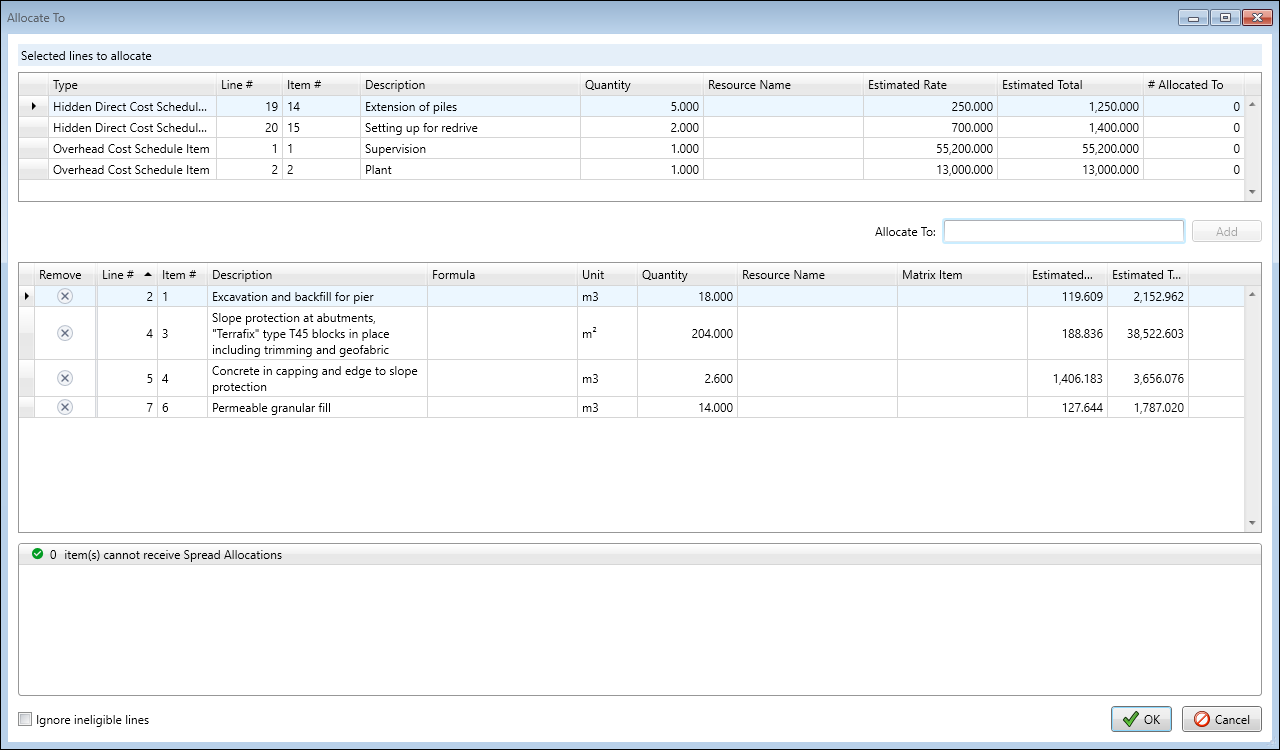
Spread Allocations window - Allocate To
When you click the Allocate To button, you will be presented with the Allocate To window. The Allocate To window allows you to select a single or multiple Hidden/Overhead Items and allocate them to multiple Direct Cost Items.
Direct Cost Items can be entered into the Allocate To field individually or as a range, separated by commas.
When a Direct Cost Item has been included for allocation, the item details will be displayed in the second pane of the Allocate To window. This includes the Line #, Item #, and Description of each item.
Any line that a Spread Item is allocated to, which cannot accept the Spread, will be highlighted red. Additionally, the conflict pane at the bottom of the page will note the reason for the identified conflict. While conflicts exist, the Allocate To screen will not permit you to ‘OK’ the allocations into the project. Choosing the ‘Ignore ineligible lines’ option at the bottom of the conflict pane will permit all eligible lines to be accepted when you hit OK’.