Matrix Items Usage Tree
The Matrix Items Usage Tree is accessed from the Matrix Item - ribbon toolbar or right-click context menu.
This window, by default, shows all locations in which the selected matrix item(s) have been used. This allows you to quickly analyse where a particular matrix item/ group of matrix items are used or assigned.
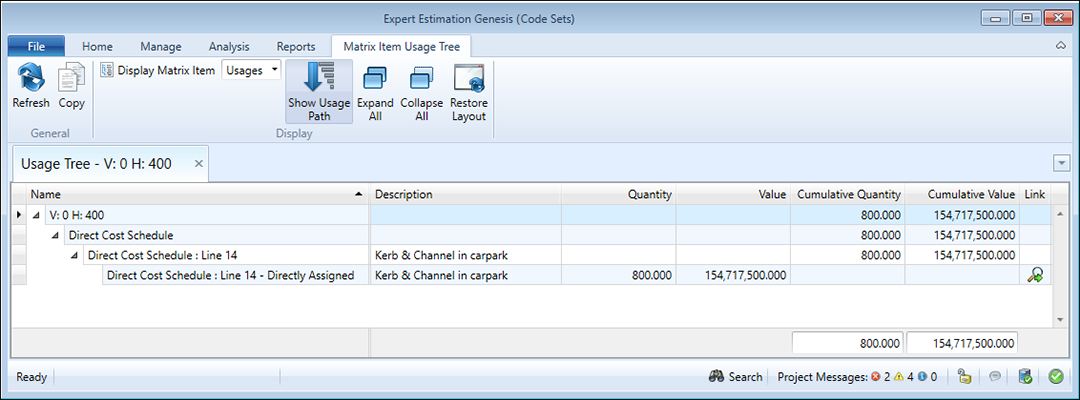
Matrix Item Usage Tree showing Usage and the Complete Path
At each location that the matrix item is being used and contributing value to the project, you can see the quantity and value of the matrix item.
Note: Where there are multiple usages of a matrix item in a particular location, the cumulative quantity and value will be displayed instead of the standard quantity and value columns.
Within the ribbon toolbar of the Matrix Item Usage Tree window, the information can be modified to show either:
- Usages - this option will display all locations in the project where the selected matrix items are contributing to the project and have a quantity assigned.
- Assignments - this option will display all locations where the selected matrix items are assigned, whether they contribute to the project or not.
Show Usage Path is enabled by default and will display the complete path to which a Matrix Item Usage (or assignment) has been used, ensuring you can easily identify exactly where in your project a resource is being referenced.
If the full path breakdown for each usage (or assignment) is unnecessary, you can choose to untoggle this option and display all references to a Matrix Item in a flat list, allowing you to still familiarise the location, based on the name column including the relevant parent detail to locate the Matrix Item.
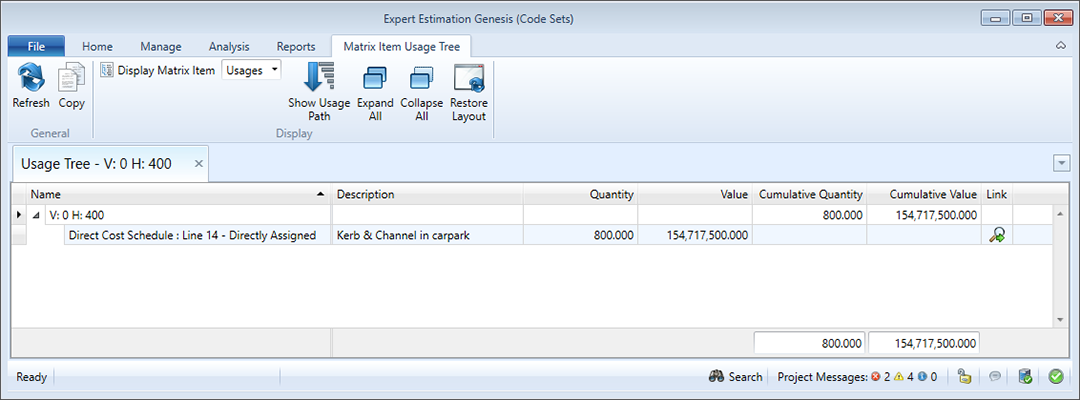
Matrix Item Usage Tree showing Assignments
Note: You can navigate to the location of the usage/assignment by double-clicking on the row you wish to view or the ( ) icon.
CONTEXT MENU OPTIONS
The Matrix Item Usage Tree window also provides you with a list of commands located in a right-click Context menu.
|
FUNCTION |
DESCRIPTION |
|---|---|
|
Copy |
Clicking the Copy button copies the selected lines to the clipboard. This allows the data to be pasted within Expert Estimation or into an external application. |
|
Collapse All |
Clicking the Collapse All button from the context menu rolls up all expanded results. |
|
Expand All |
Clicking the Expand All button from the context menu opens all collapsed results. |