Cash Flow Scenario Cost Scheduling – Ribbon Toolbar
Genesis edition only.
The contextual ribbon toolbar for the Cash Flow Scenario – Cost Scheduling windows provides access to the functions that allow for modification and management of the quantity allocations for your Quantities Over Time based Cash Flow Scenarios.
Note: The same ribbon buttons are available in both Direct and Overhead Cost Scheduling windows.
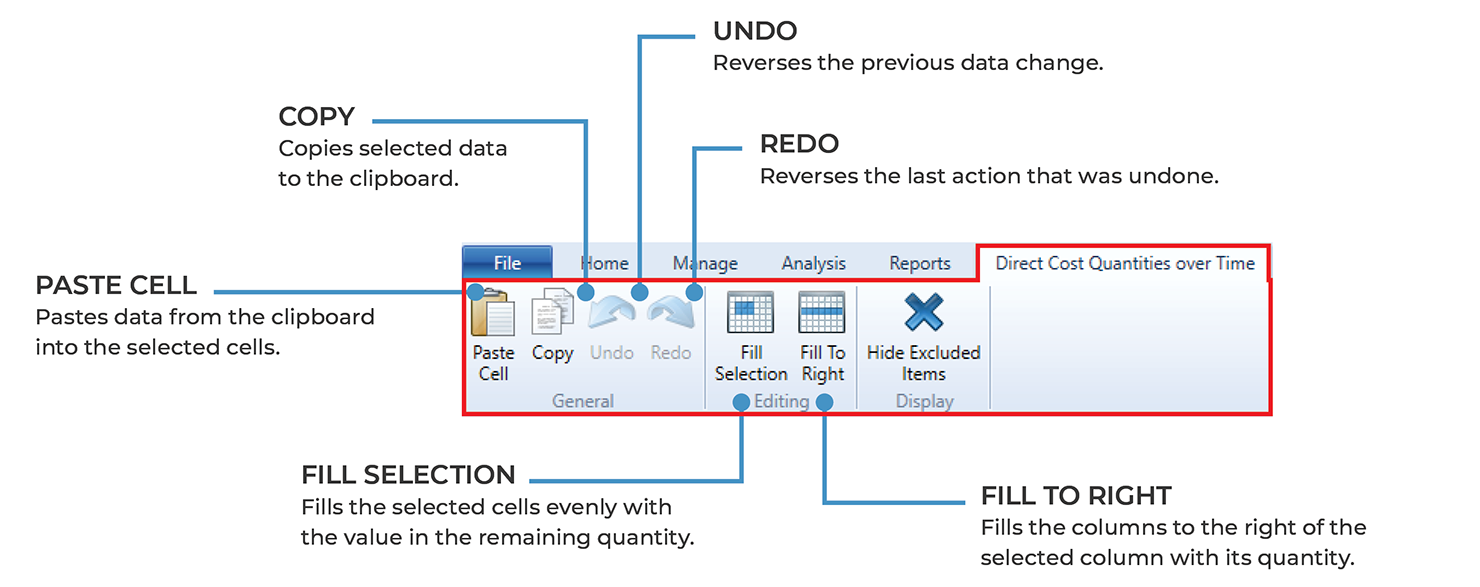
Cash Flow Scenario Cost Scheduling – ribbon menu
GENERAL GROUP
|
NAME |
DESCRIPTION |
|---|---|
|
Paste Cell |
Clicking the Paste Cell button will paste information from the clipboard into selected cells in the Cost Scheduling windows. Note: You are only able to paste data into the Date Column fields. |
|
Copy |
Clicking the Copy button will copy the selected Cost Scheduling line information to the clipboard. This allows for the data to be pasted within Expert Estimation or into an external application. |
|
Undo |
Clicking the Undo button reverses the last change made to the data. |
|
Redo |
The Redo button becomes available when an undo action is performed and is used to reverse the undo action. |
EDITING GROUP
|
NAME |
DESCRIPTION |
|---|---|
|
Fill Selection |
Clicking the Fill Selection button fills any empty cells in the selection will a value calculated as the remaining quantity divided by the number of empty cells in the selection. |
|
Fill To Right |
Clicking the Fill To Right button will fill each cell to the right of the selected cell with the same quantity until the remaining quantity reaches zero. |
GRID GROUP
|
NAME |
DESCRIPTION |
|---|---|
|
Filter Editor |
Opens the Filter Editor to allow users to modify the contents of the grid so that only items that match the specific criteria set will be displayed. |
|
Column Chooser |
Clicking the Column Chooser button will open a dialogue box that will allow users to add or remove columns from the grid. |
|
Search |
Clicking the Search function will display a field in the top right-hand corner of the grid, that will allow users to search the current window for the text entered. |
DISPLAY GROUP
|
NAME |
DESCRIPTION |
|---|---|
|
Hide Excluded Items |
Clicking the Hide Excluded items button will toggle on and off the display of excluded items. |