Substitute Resource
The Substitute Resource button opens a window that allows you to replace an existing resource that is being referenced throughout the project with another existing resource in the Resource Explorer.

Resource Explorer editing group - Substitute Resource icon
Before clicking on the Substitute Resource button, select the resource you wish to replace. When the Substitute Resource button is clicked, the Substitute Resource window will appear, listing the selected resources and allowing you to choose an alternative Resource to substitute.
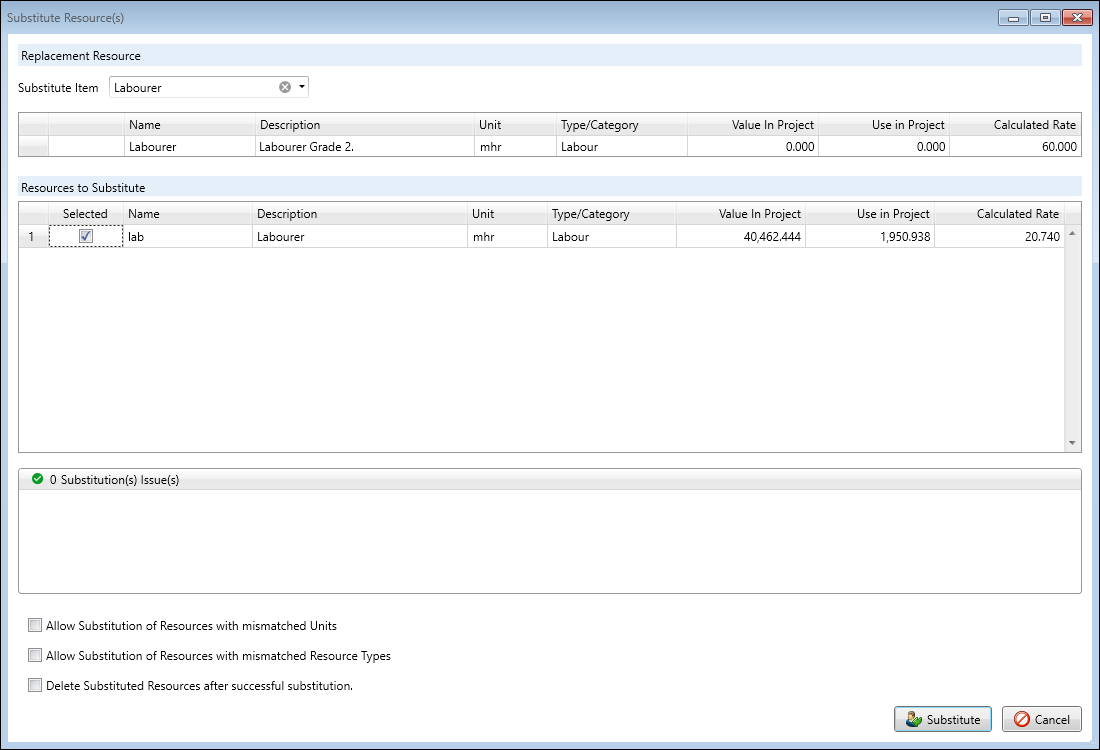
Resource Explorer- Substitute Resource window
Observe that the resource that you have selected to substitute is already allocated to the Resource to Substitute field.
You will need to use the drop-down menu in the Substitute Item field to define which resource you wish to replace your selected resource with.
SUBSTITUTE RESOURCE VALIDATION
The Validation field will warn you if your selections violate the application’s default substitution rules—for example, attempting to substitute a Resource with another Resource of a different Resource Type. If a validation issue occurs, the Substitute button in the bottom-right corner of the window will be greyed out.
You can alter the default validation rules using the checkboxes provided in the window. You can permit substitution between resources of different Resource Types by selecting Allow Substitution of Resources with mismatched Resource Type. Alternatively, you can permit a resource substitution between resources that have mismatched resource units.
Once the corresponding validation option is enabled, the Validation field will update to reflect that the substitution is now allowed, and the Substitute button will become available.
After all fields have been completed and the substitution passes validation, you can select Substitute to proceed.
Alternatively, selecting Cancel will close the window and no changes will be made.
Note: This action is reversible with the Undo button on the ribbon toolbar.
DELETE SUBSTITUTED RESOURCES AFTER SUCCESSFUL SUBSTITUTION
Checking the Delete Substituted Resources After Successful Substitution validation checkbox allows you to tell the application to completely remove the substituted resource after the completion of this action.
During this process, each connected user will be queried to see if they are using that resource in an unsaved Cost Estimate. If they are, the substitute process will be prevented by the application.
If Undo is used after substituting with deletion, the substituted resource will be returned to both the Resource Explorer, and all locations throughout the project it had been previously used.