Shell and Server Components
SHELL WINDOW
The Server Selection window of the Expert Estimation Shell allows users to populate the list of available servers that can be connected to and to connect to any server in the list. The Server Selection window also displays detailed information about each server.

Shell window
SERVER LIST
The Server List window displays the list of available servers, as well as their URI and online status.
Users can add and edit server details, search, bookmark, and delete servers as well as refresh the Server List. This is done by using the icons on the top right of the Server List.
|
ICON |
DESCRIPTION |
|---|---|
|
Add |
Opens the Add/Edit dialogue box to enter server information. |
|
Edit |
Opens the Add/Edit dialogue box to change or modify server information |
|
Delete |
Deletes the server selected in the grid. |
|
Bookmark |
Creates a desktop shortcut for the server selected in the grid. |
|
Server Search |
Searches the network for available servers and adds them to the server list. |
|
Refresh |
Refreshes the servers in the list. |
ADD/EDIT SERVER DIALOGUE
When adding a server manually or editing a pre-existing server’s details the Add/Edit server dialogue box will appear. The Server Name and URI can then be added or modified here.
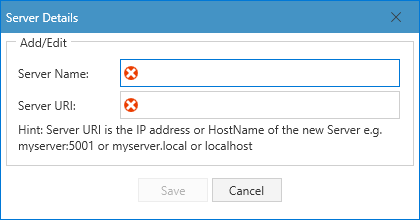
Add/Edit Server Dialogue Box
SERVER DETAILS
The Server Details grid below the Server List displays detailed information about the selected server. This information includes:
|
SERVER DETAILS |
DESCRIPTION |
|---|---|
|
Name |
Displays the selected server’s name. |
|
URI |
Displays the server’s URI, or Uniform Resource Identifier. |
|
Online |
Indicates whether the selected server can be connected to. |
|
Response Time (ms) |
Displays the response time of communications to the server in milliseconds. |
|
Shell Version |
Displays the current version number of the Shell Component. |
|
Server Version |
Displays the current version number of the Server Component. |
|
Shell Version |
Displays the current version number of the Shell Component. |
|
Security Enabled |
Indicates whether the selected server has Security enabled. |