Manual Deployment Getting Started
Users working for enterprise clients who do not wish to utilise pre-configured server and licence information are required to follow several steps to manually configure the application.
- Open the Expert Estimation Shell application. This will launch the Select Server window as shown below.

- Click the green plus icon to Add Server.
- The window will expand to show two additional fields; Server Name and Server URI (alternatively – This will bring up a dialogue box with two additional fields; Server Name and Server URI)
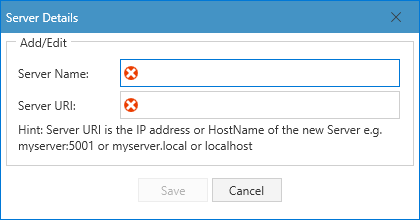
- In the Server Name field enter a user-friendly descriptor to label the Server connection. An example would be ‘Company Expert Estimation Server’.
- In the Server URI field enter either the Fully Qualified Domain Name (FQDN) or IP Address of the machine with Expert Estimation Server installed.
- Click the Save button. The connection will be added to the Server list and will display a green circle with a tick to show the server is available for connection. If a red circle with a cross is displayed, check the entered details and if the server machine can be contacted on the network.
-
Select the newly created connection from the Server list and click the Connect button.
Upon connecting to the server, the essential client application files will be downloaded from the server to the following folder:
C:\ProgramData\Pronamics\Expert Estimation\Client\Client.version
These files will be stored as a versioned directory on the machine, representing the version of the server which was connected. For example, for Server version 1.24.1.15871 the client folder would be Client.1.24.1.15871.
Note: Expert Estimation Shell requires the following prerequisites for successful connection to the server:
- The Expert Estimation Server has been installed on an alternative machine, and the details of the alternative machine are known.
- The Expert Estimation service is running.
- The user’s machine and the server machine have the required network access and TCP connectivity to the resolved IP address of the alternative machine through Port 5001 in which the Expert Estimation Server is installed.
Once the files have been downloaded successfully, the client application will launch. If this is the first time this user has accessed Expert Estimation from a workstation, a licence key will need to be entered into the Expert Estimation Licence Information window (as shown below) to activate the licence.
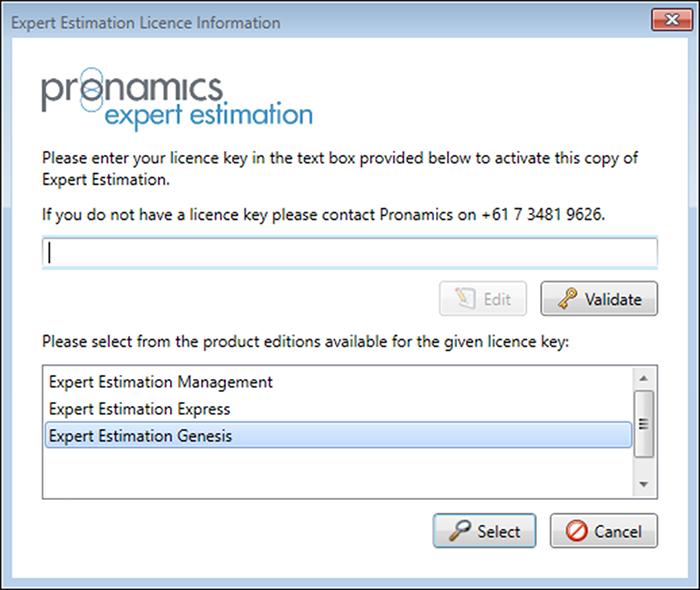
- Click the Edit button. A cursor will appear in the blank text box.
- Enter the provided licence key.
- Click the Validate button to ensure the key is correct. Upon successful validation of the licence key the list of Product Editions will become available.
- Select the required Product Edition for use.
- Click the Select button. If there are available licences the window will disappear, and the Expert Estimation Client will be activated for the current user.
Now that Expert Estimation has had the Licence Key and Product Edition configured, the next time the application is launched these settings will automatically be re-validated.